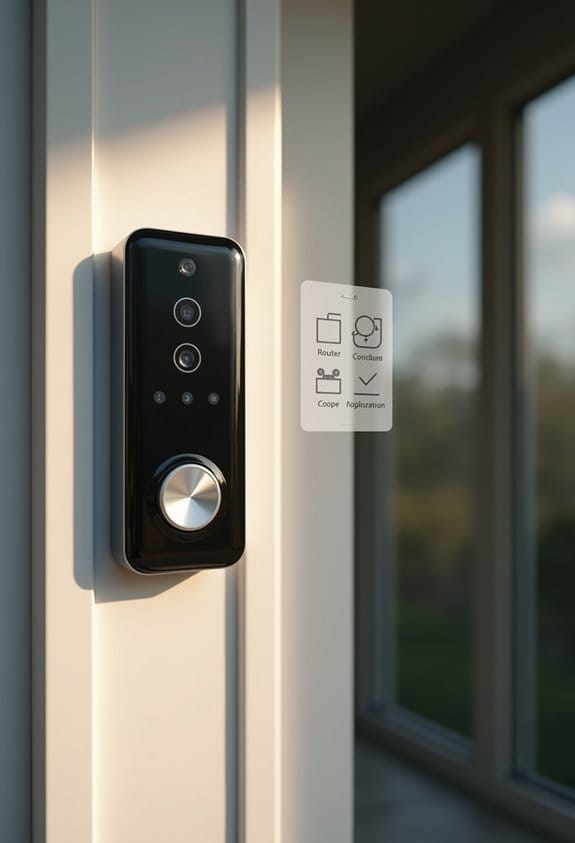

Router settings can directly impact your Ring doorbell’s connectivity. We should check that the Wi-Fi password is correct and confirm our network’s functionality with another device. If needed, we can lower the firewall settings and open necessary ports for the Ring device. Proper router placement is essential; ideally, it should be elevated and centrally located. If issues persist, we might consider using DMZ settings or investing in Wi-Fi extenders like the Ring Chime Pro. Understanding these factors can help us troubleshoot effectively.
Key Takeaways
- Ensure the correct Wi-Fi password is set for the doorbell device to prevent connection failures.
- Adjust firewall settings; lower to medium or low if high settings block connectivity.
- Open required ports in the router as specified in the doorbell’s setup guide.
- Place the doorbell device and router closer to each other for improved signal strength.
- Avoid DMZ configurations unless necessary, as they can expose devices to security risks.
Diagnosing Wi-Fi Connection Issues for Your Ring Device
How can we effectively troubleshoot Wi-Fi connection issues for our Ring device? First, let’s confirm our Wi-Fi network is working by testing with another device, like a smartphone. If that connects, we need to verify we’re using the correct Wi-Fi password for the Ring device, as incorrect credentials can cause connection problems. Next, check the router’s security settings; lowering the firewall to medium or low may resolve some issues without compromising security. If problems persist, consider using a Wi-Fi extender, such as the Ring Chime Pro, to enhance signal coverage. Finally, remember to position the router closer to the Ring device in an open space, as this greatly improves signal strength and connectivity. Utilizing devices with a wireless range of up to 2000 sq. ft. like the Ring Chime Pro can significantly improve overall connection reliability.
Improve Your Router Placement for Signal Strength
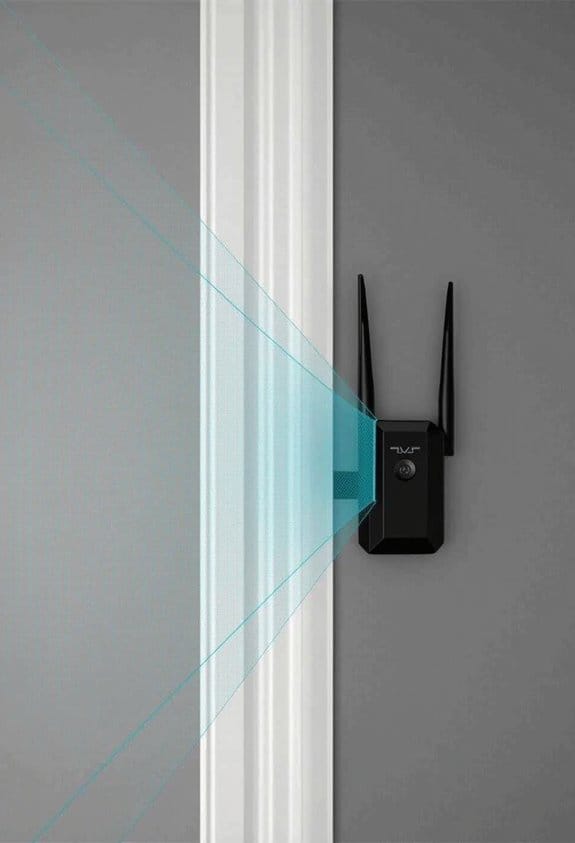
To improve your Ring doorbell’s performance, we should first focus on router placement. It’s best to place the router in a central part of the home to maximize Wi-Fi network coverage. This guarantees that the signal strength reaches all devices, including your Ring doorbell. Avoid keeping the router near walls, large furniture, or electronic devices that can disrupt the signal. Elevating the router can boost coverage, as higher placements improve the line of sight. If possible, move the router closer to the Ring doorbell; distance can weaken connectivity. Finally, regularly review the router’s location based on your home layout and device positioning to guarantee peak performance. Addressing placement can greatly enhance your doorbell’s connectivity. Additionally, ensuring a stable Wi-Fi connection is crucial for timely motion detection notifications and overall video quality.
Modify Your Firewall and Enable Required Ports for Ring Connectivity
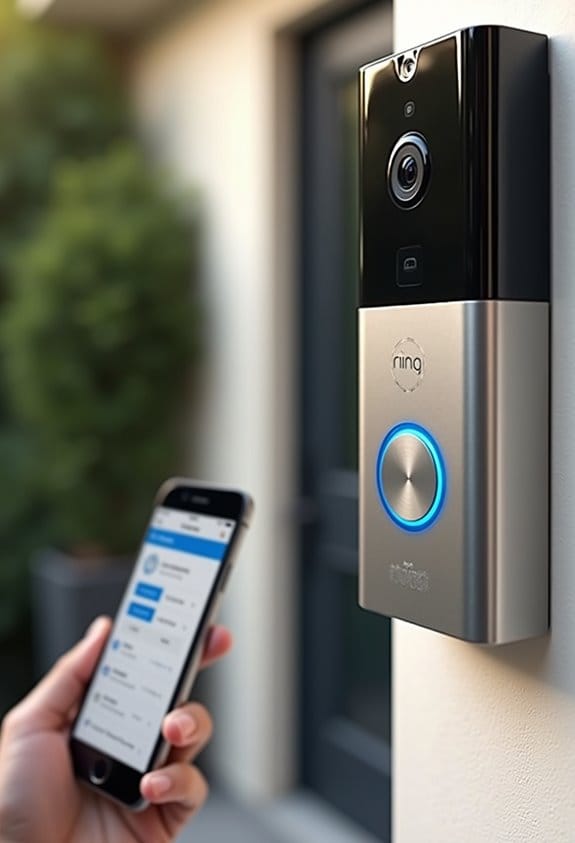
Once we’ve optimized our router’s placement, the next step is to confirm that the firewall and port settings on our router are configured to support the connectivity of our Ring doorbell. First, we’ll begin with the firewall setting, which should start at High for security. However, if we experience connectivity issues, we can cautiously lower it to Medium or Low. Next, we need to identify and open the required ports for our Ring device. Checking the Ring setup guide will provide specific port information. It’s also helpful to assign a fixed IP address to the device using Advanced Options during setup. Finally, our Wi-Fi password must be correct to confirm a flawless connection to the Ring servers. Ensuring compatibility with dual-band Wi-Fi networks can also improve connectivity stability for video doorbells.
Use DMZ Settings to Boost Ring Connectivity
Configuring DMZ settings can considerably enhance the connectivity of our Ring doorbell, especially if we’ve encountered persistent connection issues. By placing our Ring device in the DMZ (Demilitarized Zone), we allow all traffic to pass freely, which can help bypass firewall restrictions. However, it’s essential to consult our router’s documentation first, as not all routers support DMZ settings. When implementing DMZ, we must also prioritize network security, since devices in this zone will be exposed directly to the internet. Properly configured DMZ settings can resolve many connectivity issues we might face. Always follow instructions from the router manual for ideal setup and verify adequate security measures are in place to protect our network. Additionally, ensuring video doorbell compatibility with existing wiring and network setups helps maintain stable and reliable connectivity.
Check Out Wi-Fi Extenders and Other Upgrades
When we struggle with connectivity issues for our Ring doorbell, turning to Wi-Fi extenders and other network upgrades can provide a practical solution. Wi-Fi extenders, like the Ring Chime Pro, can strengthen and extend our Wi-Fi signal, making it easier for our doorbell to connect. Additionally, upgrading to a newer router, especially one supporting Wi-Fi 6E, can drastically improve speed and performance for all smart devices.
For larger homes, considering a mesh network system, like eero, can eliminate dead zones and reduce signal loss. Proper placement of these devices in central locations helps maximize coverage. Investing in these upgrades may save us time and anxiety versus troubleshooting ongoing connectivity issues. Using a device such as the Ring Chime Pro can also provide real-time alerts and expand wireless coverage up to 2,000 square feet, enhancing overall doorbell connectivity.
Frequently Asked Questions
How to Improve Wi-Fi Signal for Ring Doorbell?
Like planting a garden, we should nurture our Ring doorbell’s signal. A signal booster or Wi-Fi extender paired with a thoughtful placement strategy, away from network interference, can cultivate a thriving connection for our home’s sentry.
Why Wont My Ring Doorbell Reconnect to My Wi-Fi?
If our Ring doorbell won’t reconnect to Wi-Fi, let’s consider using the Ring app for troubleshooting, checking for firmware updates, evaluating the Wi-Fi range, and identifying any signal interference sources that might disrupt connectivity.
How to Configure Router to Use WPA2 or WPA3 Security?
To configure our router for WPA2 or WPA3 security, we’ll access the settings, select the preferred option, and save changes. This enhances our network’s security and guarantees better compatibility with connected devices.
Does Ring Need 2.4 or 5GHZ?
Ring needs 2.4GHz for ideal Wi Fi connectivity. We should guarantee our network compatibility, minimizing signal interference for a stable connection. Switching from 5GHz to 2.4GHz is essential for reliable performance, especially for Ring devices.