
Choppy clips and dropped frames often stem from network issues or device limitations. When our internet connection is weak, it can lead to packet loss, making streamed content choppy. If we’re using older computers or if our CPUs are overloaded, rendering can slow down, resulting in dropped frames. We should guarantee our upload speed is at least 6 Mbps for stable 720p/60fps streaming and consider using wired connections. Understanding both angles is essential for smooth streaming, and there’s more we can explore.
Key Takeaways
- Network congestion from multiple users can overwhelm bandwidth, leading to packet loss and dropped frames during streaming.
- Insufficient upload speeds, ideally at least 6 Mbps, can cause choppy streams, especially at higher resolutions like 720p/60fps.
- High CPU usage from demanding applications can delay frame rendering, resulting in dropped frames and overall poor performance during streams.
- Using a wired connection instead of wireless provides greater stability, reducing frame loss and improving streaming quality.
- Dynamic bitrate management can adapt streaming quality in real-time, helping to prevent dropped frames during fluctuating network conditions.
What Are Dropped Frames and How Do They Affect Your Stream?
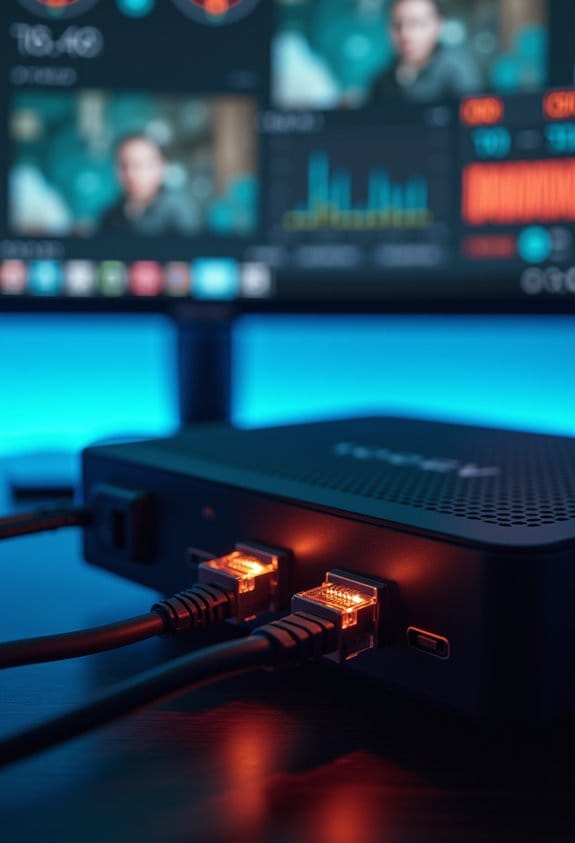
When we stream our content, understanding dropped frames is essential for maintaining a smooth experience. Dropped frames occur when frames successfully encoded by OBS don’t reach the streaming server due to issues with our network connection. The dropped frames counter shows the difference between what we’ve sent and what’s received, helping us gauge performance. At higher frame rates, like 60fps, the visibility of dropped frames becomes more noticeable, causing lag or freezes for viewers. Factors such as network congestion, hardware limitations, and high bitrate settings may increase dropped frames during our stream. To minimize this issue, we should guarantee we have a stable internet connection with adequate upload speed and optimize our streaming settings appropriately. Additionally, integrating devices that support reliable Wi-Fi communication protocols can enhance overall streaming stability and reduce dropped frames.
Common Causes of Dropped Frames: Network vs. Device Issues
Understanding the various causes of dropped frames is essential for streamers aiming to enhance their broadcast quality. Many of the issues we face come from network issues or device performance. Network problems often involve low upload speeds; we need at least 6 Mbps to maintain stable 720p/60fps streaming. If our internet connection isn’t reliable, frames may not make it to the server, leading to choppy streams.
On the device side, high CPU usage can cause delays in rendering and encoding, resulting in dropping frames. Older hardware or insufficient memory can also slow down processing, especially during demanding streams. Striking a balance between a stable network and powerful devices is vital for uninterrupted, high-quality broadcasts. Ensuring that devices have durable cables and efficient charging can also contribute to maintaining device performance and prevent interruptions caused by power issues.
How Network Congestion Causes Dropped Frames
Though it may not be immediately obvious, network congestion markedly affects the quality of our streams, often resulting in dropped frames. When too many users share an internet connection, the available bandwidth gets overwhelmed. This congestion can lead to packet loss, where data packets sent from our streaming software fail to reach the server, causing interruptions and increasing dropped frames. If we’re using a high bitrate setting, like 6 Mbps for a smooth 720p/60fps stream, our internet connection needs to support this speed continuously. Unstable connections can further disrupt data flow. To minimize these issues, we should consider checking for external factors, such as ISP limitations or router problems, which could alleviate network congestion and improve our streaming experience. Additionally, choosing devices with thermal protection can help avoid performance drops caused by overheating in equipment during heavy network usage.
Understanding Device Limitations Leading to Choppy Streams
To achieve a smooth streaming experience, we need to be aware of the limitations our devices may impose. High CPU overload can lead to performance issues when streaming on platforms like Twitch or YouTube. If our device is running resource-heavy applications, like games or video editors, it may struggle, causing choppy streams and dropped frames. Streaming at 1080p resolution and 60 frames per second can overwhelm older hardware, increasing the risk of lag. Additionally, overheating may occur, resulting in throttling and impacting performance. To counter this, we can use hardware encoding options like NVENC or AMD, which help distribute the workload more evenly, allowing for smoother streaming without pushing our device to its limits. Furthermore, utilizing devices with enhanced processing capabilities designed for video quality and night vision can help maintain stream clarity and stability.
How to Spot Frame Rate Issues During Your Stream?
Detecting frame rate issues during a stream is essential for maintaining a high-quality viewing experience. To start, we should monitor the dropped frames counter in OBS to see if there’s a noticeable difference between sent and received frames. If we notice consistent frame loss, it might be a network issue. Using a tool like Wireshark, we can analyze packet flow and check for any network congestion signs. Additionally, let’s keep an eye on CPU and GPU usage during streaming; high usage might indicate our system is overloaded. Finally, we should guarantee our stream’s bitrate matches our upload speed, as exceeding bandwidth can lead to dropped frames. Visual signs such as lag or stutter can further highlight frame rate problems. For improved monitoring reliability, consider equipment with features like motion detection alerts to help identify network or device issues promptly.
Optimize Your Network for Streaming
When we prioritize optimizing our network for streaming, we can greatly enhance our broadcast’s quality and reliability. First, let’s make sure we’re using a wired internet connection, as it offers more stability and reduces latency compared to wireless options. Regularly conducting speed tests can help us confirm that our upload speed meets at least 6 Mbps for smooth performance at 720p/60fps. We should also adjust our Dynamic Bitrate settings to match our available bandwidth, especially during peak times when dropped frames can occur. Minimizing network congestion by closing unnecessary applications will help maintain a steady data flow. Finally, using network optimization tools like Speedify can combine connections to better support our streaming needs, enhancing stability and reducing interruptions. Additionally, ensuring that your devices support high video resolution capabilities can help improve overall streaming video clarity and quality.
Enhance Device Performance to Prevent Dropped Frames
Optimizing our device’s performance is essential for preventing dropped frames during streaming. First, we should close unnecessary applications running in the background, which helps reduce CPU and GPU overload. Next, we can enable hardware encoding options like NVENC for NVIDIA or AMF for AMD, allowing the GPU to handle encoding tasks, making streaming smoother. If we experience lag, lowering graphical settings or capping the frames per second (FPS) relieves stress on the GPU, maintaining a stable stream. Regularly monitoring our system resources using Task Manager helps identify if our CPU or GPU is maxed out. Additionally, upgrading hardware components, like adding RAM or using a faster SSD, can further enhance system performance for more effective streaming. Ensuring a stable Wi-Fi connection is also crucial since poor connectivity can contribute significantly to dropped frames and choppy video quality.
Dynamic vs. Static Bitrate: Choosing the Right One for Smooth Streaming
Choosing between dynamic and static bitrate can greatly affect the quality of our streaming experience. A static bitrate, such as 6,000 Kbps, maintains a fixed data rate but can lead to dropped frames if our internet connection can’t support it consistently. On the other hand, a dynamic bitrate automatically adjusts the stream quality in real-time based on available bandwidth, helping to minimize dropped frames and guaranteeing smoother streaming. Many traditional tools require us to enable dynamic bitrate through settings, while newer platforms like StreamYard manage it automatically. By opting for dynamic bitrate, we can notably enhance viewer satisfaction, especially during fluctuating internet conditions. To optimize reliability, we should verify at least 6 Mbps upload speed for 720p at 60fps. Choosing devices with advanced motion detection can also improve streaming by reducing false alerts and unnecessary bandwidth use.
Using Speedify to Improve Connection Stability for Streaming
Our streaming experience can be drastically impacted by connection stability. Using Speedify can greatly improve our internet connection for live streaming. This app combines multiple connections, like WiFi and cellular data, to enhance our overall bandwidth. It automatically detects available internet connections, making it easy to set up. By utilizing channel bonding technology, Speedify minimizes latency, packet loss, and jitter—key factors that often lead to dropped frames. Additionally, the Pair & Share feature allows us to connect to multiple hotspots simultaneously, further boosting our streaming reliability. For just $50 a year, Speedify offers a cost-effective alternative to specialized hardware, ensuring we can enjoy seamless live streaming without interruptions. Let’s consider it a wise investment for our viewing experience. It is important to evaluate factors like coverage area and network conditions to maintain the best possible streaming quality.
Frequently Asked Questions
What Is the Main Cause of Frame Drops?
The main cause of frame drops is often due to hardware limitations, software conflicts, and improper streaming settings. We should guarantee our devices are optimized and configurations are correct for the best viewing experience.
How to Fix Dropped Frames Due to Network?
To fix dropped frames, let’s explore network optimization techniques and bandwidth management tips. Adjusting our stream quality settings while ensuring a stable connection can transform our viewing experience and eliminate interruptions during streaming. Let’s get started!
Why Am I Dropping Frames With Good Internet?
We’re dropping frames despite good internet because our streaming settings might be too high, hardware limitations may exist, or application conflicts could interfere. Let’s optimize those settings for smoother, uninterrupted streaming together.
What Causes Dropped Frames on Twitch?
Dropped frames on Twitch can stem from poor streaming quality, improper encoding settings, or inadequate hardware performance. It’s essential we optimize our setup to maintain a smooth experience, avoiding frustrating interruptions during broadcasts.