


If our live view is working but recordings aren’t, we should check our motion detection settings to verify they’re activated and accurately configured. Next, let’s confirm that the camera’s recording mode is set to “Armed.” We should power cycle the camera and observe if that resolves the issue. Additionally, improper camera placement or obstructions may affect functionality. If the problem persists, we might need to perform a factory reset or check software updates for peak performance. There’s more to explore on this topic.
Key Takeaways
- Verify that motion detection settings and recording rules are properly configured to ensure recordings are activated during detected motion.
- Check the camera’s recording mode is set to “Armed” and that recording duration settings are adequate for capturing events.
- Ensure the camera’s firmware is up to date, as updates can fix bugs affecting recording functionality.
- Examine the camera’s placement for obstructions or environmental factors like glare and lighting that could hinder recording performance.
- Confirm storage availability and compatibility, whether using microSD cards or cloud storage settings, to facilitate uninterrupted recording.
How Live View and Recordings Work
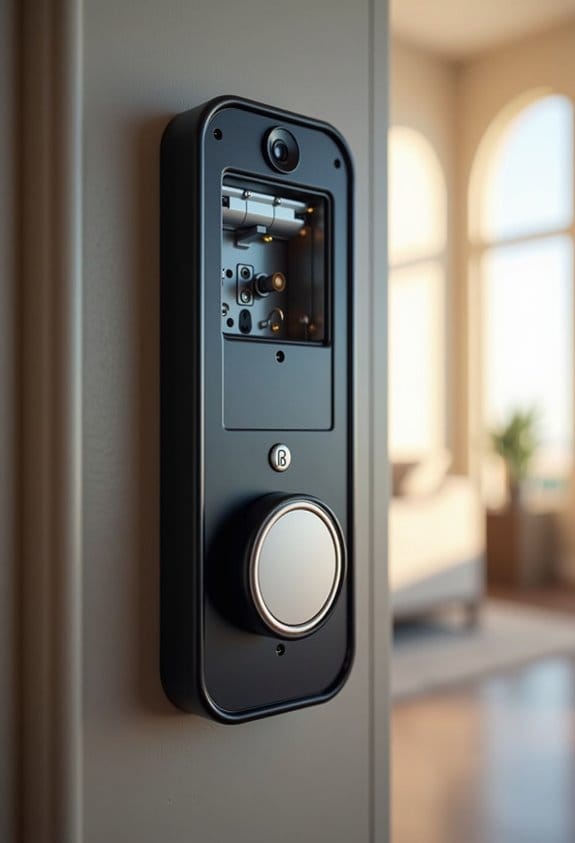
When we use the live view feature on our security cameras, we can see real-time footage, which helps us monitor our surroundings effectively. However, this does not mean the camera will automatically record video. Recordings typically occur when motion detection is activated. If our settings aren’t configured correctly, we may miss important events. To enhance how our cameras respond, we should adjust the motion detection rules—setting the sensitivity and duration based on our needs. If the camera fails to recognize motion, no recordings will be saved, even if live view is operational. Consequently, we must verify that all motion detection settings are enabled to confirm our system performs at its best. Many models also include customizable detection zones to target specific areas for motion recording, improving the accuracy of saved footage.
Why Are My Videos Not Recording?

Experiencing issues with video recordings can be frustrating, especially if live view is functioning properly. If there are no recordings, we should first check that motion detection settings are properly configured. Cameras often record only when motion is sensed, so we must adjust sensitivity settings to guarantee they detect movement effectively. Additionally, poor camera placement or obstructions can prevent motion detection, leading to missed recordings. If our settings all seem correct, let’s consider power cycling or performing a hard reset on the device as potential solutions. If the problem continues after these steps, contacting customer support for our camera brand could provide further insights and solutions. Addressing these points may help us resolve the recording issues we’re experiencing. It’s also important to ensure stable dual-band connectivity, as weak Wi-Fi signals can disrupt recording functions.
Initial Troubleshooting Steps to Fix Recording Issues

To effectively troubleshoot recording issues with our cameras, we should start by systematically examining several key factors. First, let’s check if the motion detection rules are correctly configured; automatic recordings occur only when motion is detected. If we can see live footage but aren’t able to view recordings, this could indicate a problem. Next, power cycling the camera by disconnecting it from its power source can help restore functionality. Additionally, we should review the motion sensitivity settings in the app, increasing them if necessary. Finally, examining the activity log will help us confirm whether recordings were initiated during motion events. Utilizing the Blink app for real-time monitoring and adjusting settings can greatly assist in resolving recording problems. By following these steps, we aim to resolve recording issues efficiently.
Optimizing Camera Placement to Avoid Obstructions
Recording issues can often stem from improper placement of the cameras. To enhance recording performance, we should mount our cameras at a height of 7 to 10 feet. This height allows for a broader field of view while keeping the cameras out of reach from passersby or curious animals. It’s crucial to position the cameras facing open areas rather than enclosed spaces to maximize motion detection. We can also make angle adjustments to minimize glare from sunlight or reflections that could obstruct clear recordings. Finally, ensuring that the camera’s field of view encompasses essential areas, like doorways or driveways, markedly increases the chances of capturing relevant events. Proper placement is key to achieving ideal performance. Additionally, adjusting motion detection sensitivity can help reduce false alerts and improve recording relevance.
Ensure Your Motion Detection Settings Work
Ensuring our motion detection settings work correctly is vital for effective surveillance. First, we should access our camera’s settings and verify that motion recording rules are active. Then, let’s adjust motion sensitivity settings—higher sensitivity can enhance our camera’s ability to detect movement and trigger recordings more efficiently. We also need to confirm that our camera’s recording mode is set to “Armed,” which activates automatic recordings during motion events. Next, we should check the recording duration settings, ensuring they’re long enough, ideally up to 30 seconds, to capture important moments. Finally, regularly performing camera firmware checks is essential since updates can impact the functionality of motion detection and recording features. Additionally, configuring customizable detection zones can help reduce false alerts and improve motion-triggered recordings.
The Importance of Software Updates
Keeping our camera system functional goes beyond just configuring motion detection settings. Regular software updates are essential for peak performance. Outdated firmware can lead to bugs, preventing recordings from activating despite motion detection during live view. We recommend following update frequency guidelines provided by manufacturers, like Ring, who often send notifications. These updates not only address existing issues but also introduce enhancements in video quality and recording settings, greatly benefiting our overall experience. Additionally, maintaining updated software protects our devices from security vulnerabilities. To guarantee reliability, check for updates quarterly and apply them promptly. By following these software maintenance tips, we prevent potential frustrations with our camera’s recording functionalities and can enjoy a smoother operation. Many newer models also include features such as pre-recording that capture footage seconds before motion detection, making software updates crucial to enable these capabilities.
Utilizing Community Support for Troubleshooting Tips
When faced with troubleshooting issues, tapping into community support can be incredibly beneficial. Engaging in forums allows us to learn from user experiences, and many community members share effective tips that address similar problems, such as recording failures when live view works. Users often recommend evaluating environmental factors, like removing obstructions and checking camera placements, which can influence motion detection. Resetting devices through the app or performing hard resets is also a common discussion point. By utilizing community solutions, we can tap into a wealth of shared knowledge, which can clarify persistent issues and provide practical answers. Continually connecting with peers not only fosters understanding but also leads to lasting solutions that may resolve our frustrations. Additionally, understanding the impact of battery life on device performance can be crucial to maintaining reliable recording functionality.
What to Do When a Factory Reset Is Needed
Sometimes, a factory reset is necessary to resolve ongoing issues with camera functionality. To kick off the factory reset process, we’ll need to locate the reset button, usually found near the power port. Press and hold this button for 10 to 15 seconds until a blinking light appears, indicating the reset has begun. Before we do this, it’s essential to back up any recorded footage, as this process erases all existing data and settings. After the reset, we must reconfigure settings such as Wi-Fi connections and motion detection rules for best performance. If we still encounter problems after this, we may need to evaluate other options for assistance. Ensuring that your doorbell system is powered by a compatible doorbell transformer can help prevent functionality issues from recurring.
When to Call Ring Customer Support?
Despite our best efforts in troubleshooting camera issues, there may come a time when reaching out to Ring customer support becomes necessary. If we’re consistently experiencing recording issues, even while live view functions correctly, it’s time to seek help. We should also reach out after trying common troubleshooting techniques like power cycling, hard resetting, or reinstalling the camera without success. Additionally, if we’ve ruled out environmental factors, such as obstructions or incorrect placement, contacting customer support is essential. When we do, we should provide specific details about our camera model and the steps we’ve already taken. This information enables support to diagnose the issue more efficiently, potentially expediting our solution and minimizing frustration. It’s also helpful to verify whether the camera’s local storage via microSD cards or cloud storage settings may be impacting the recording functionality.
Frequently Asked Questions
Why Is My CCTV Showing Live but Not Recording?
If our CCTV shows live but isn’t recording, we should check camera settings, verify there’s no storage issue, and confirm firmware updates are current. Any of these can affect recording functionality despite live viewing.
Why Is My Recording Not Working?
Like a silent sentinel, our recordings might miss their cue if recording settings aren’t set right, storage issues arise, or if there’s camera compatibility trouble. Let’s check these factors to capture those important moments.
Why Is My Camera System Not Recording?
Our camera system might not be recording due to incorrect camera settings, potential storage issues, or outdated software. Let’s check those factors to verify everything’s configured correctly for ideal performance and reliable recordings.
Why Is My Recorded Video Not Playing?
If our recorded video isn’t playing, it could be due to incompatible video formats, storage limits on our devices, or playback issues caused by internet connectivity. Let’s check those aspects to resolve it.


