
Customizing alert schedules for daytime and nighttime is essential for minimizing distractions and ensuring important notifications are received. We can set specific time frames, like 8 AM to 8 PM, for alerts, and filter out less critical notifications at night. Prioritize urgent alerts to bypass “Do Not Disturb” settings while silencing minor notifications. Utilizing location-based alerts further refines what we receive. This way, we stay focused during the day and relaxed at night. There’s more to discover on optimizing your alert settings.
Key Takeaways
- Set alert schedules to activate during specific time frames, such as 8 AM to 8 PM for daytime notifications.
- Prioritize critical alerts at night while filtering out non-urgent notifications to maintain tranquility.
- Adjust alert tones for day and night to help users differentiate between the two settings.
- Program distinct alert profiles that automatically enable nighttime settings to minimize disturbances during sleep hours.
- Utilize time-based settings to silence less important notifications and allow critical alerts to bypass Do Not Disturb.
How to Customize Alerts for Day and Night
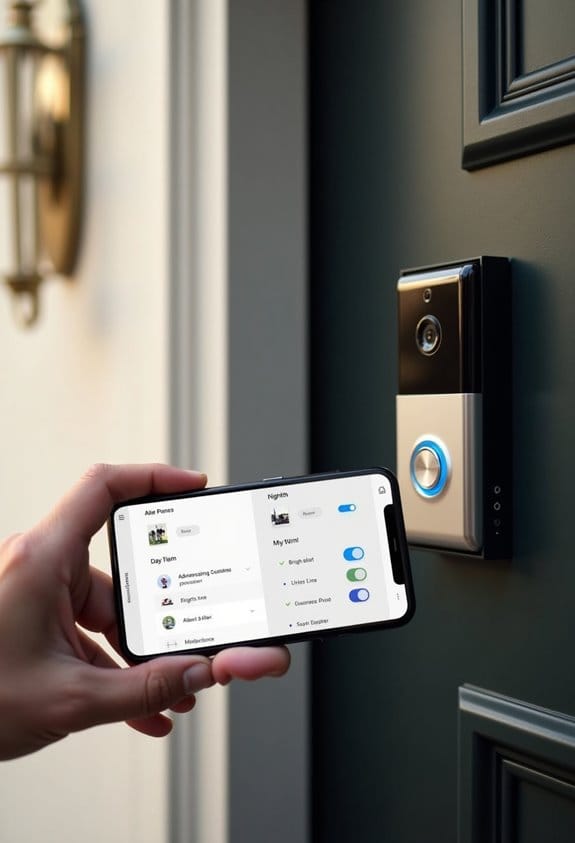
When we’re looking to customize alerts for different times of the day, it’s essential to create schedules that enhance our alert system’s effectiveness. To set alerts effectively, we can start by configuring specific time frames. For daytime, set alerts between 8 AM and 8 PM, ensuring notifications cover active hours. At night, we can prioritize critical alerts while filtering out less important notifications. Additionally, utilizing location-based alerts helps us monitor different areas of our home, ensuring nighttime notifications are relevant. It’s also beneficial to experiment with the app’s customization options, adjusting alert tones for day and night. Finally, we can use time-based settings to automatically enable or disable alerts, providing peace of mind during off-hours. Enhancing this approach with customizable sound profiles allows for better differentiation between day and night alerts, improving overall responsiveness.
Tailoring Notifications for Specific Times
To effectively tailor notifications for specific times, we should consider the patterns of our daily routines and adjust our settings accordingly. By customizing alert schedules, we can choose specific hours for notifications, such as 8 AM to 8 PM, minimizing disturbances during our busy day. For example, if we’re on vacation, we can set alerts to activate only when our house is empty, boosting security awareness without excessive interruptions. Additionally, adjusting alert sensitivity based on traffic patterns during weekdays versus weekends allows us to receive context-specific notifications. By ensuring our alerts align with our daily activities, we can enhance our experience, making notifications relevant and timely, ultimately reducing frustration during our personal time. Utilizing designated zones for alerts can further improve the relevance of notifications during these tailored schedules.
Control Notification Frequency During Business Hours
Controlling notification frequency during business hours is essential for maintaining productivity and focus. We can customize alert notifications to activate during specific hour ranges, like weekdays from 8 am to 8 pm. This step helps reduce unnecessary distractions. It’s important to implement different alert thresholds, so only significant events trigger notifications. During regular working hours, we can mute or lower the priority of alerts; this minimizes interruptions. Critical notifications for urgent matters should remain enabled, while lower-priority alerts can be disabled. Regularly reviewing and adjusting our alert settings based on traffic patterns guarantees alerts are relevant. With these adjustments, we can enhance efficiency and create a more focused work environment. Additionally, adjusting notification volume levels can further tailor alert importance during these times.
How to Keep Nighttime Notifications Distraction-Free
Managing notifications during nighttime hours is important for a restful sleep. We can configure our devices to minimize distractions while we sleep by setting time-based notification settings. It’s essential to prioritize critical incident alerts, like fire or break-ins, so they can bypass our Do Not Disturb settings when needed. For less urgent notifications, silence them for the night time. We can also benefit from customizing alert messages, including specific time references, such as “Back door opened at 2:15 a.m.,” which reduces ambiguity. Consider programming different alert profiles that activate automatically during nighttime, silencing routine notifications. These adjustments help create a peaceful sleeping environment by allowing only the most relevant alerts to reach us while we rest. Adjusting alert schedules can be further enhanced with notification customization options available in most doorbell apps.
Best Practices for Setting Location-Based Alerts
Setting location-based alerts can greatly enhance the way we monitor our properties. To get started, we should create a schedule that reflects our daily routines. First, we can identify key zones, such as the garage or backyard, guaranteeing we receive alerts from areas that matter most, not from high-traffic spots like kitchens. Next, we can customize the timing of alerts, activating them only during specific hours. This way, we’re not interrupted by non-urgent notifications while engaging in daily activities. Additionally, geofencing can be used to automatically adjust alerts based on our presence. By prioritizing critical alerts, like security breaches, we guarantee important notifications receive our attention, thereby enhancing our home monitoring experience. Utilizing customizable alerts also allows us to minimize irrelevant notifications, improving overall alert efficiency.
How to Set Up Conditional Alerts Based on Day or Night Schedule?
To effectively set up conditional alerts based on our day or night schedules, we need to carefully configure our notification settings. First, we can designate specific time periods for alerts, such as 8 AM to 8 PM for daytime and 10 PM to 7 AM for nighttime. Utilizing profile management tools allows us to create distinct profiles, automatically switching based on the time. Next, we may want to assign different priority levels for alerts; high-priority notifications during the day can help us stay informed. At night, lower-priority alerts minimize disturbances. Finally, we should customize alert messages. For example, a daytime alert might read, “Front door opened at 3 PM,” while nighttime alerts should only include urgent notifications. Ensuring the alert sound volume follows sound quality considerations is vital to prevent disturbances during nighttime hours.
Exploring the Benefits of Alert Prioritization in Customization
While creating a customized alert system can seem overwhelming, the benefits of alert prioritization make it worthwhile. By assigning different importance levels to alerts, we can guarantee that critical notifications—like fire or break-ins—receive immediate attention. For urgent situations, using louder tones or overriding Do Not Disturb settings helps us respond without delay. Conversely, we can set lower-priority alerts to silent or use softer tones, minimizing distractions during less critical times, especially at night. Customizing alerts based on roles or locations allows all household members to get relevant notifications tailored to their responsibilities. Ultimately, effective alert prioritization enhances our response times to emergencies while filtering out unnecessary interruptions, leading to a more efficient home monitoring system. Many doorbell systems also allow users to define motion zones and detection sensitivity, reducing false alerts and improving the relevance of notifications.
Personalizing Alerts With Text or Voice Notifications
Creating a personalized alert system can greatly improve how we receive critical information about our home environment. By personalizing alerts with specific text or voice notifications, we can replace generic messages with clear, detailed information. For instance, we could receive a notification stating, “Back door opened at 2:15 p.m.,” which clarifies the situation and aids our response.
Tailoring the communication style makes alerts more engaging, particularly for children or elderly family members. We can set different tones for urgent notifications—like fires or break-ins—ensuring they grab immediate attention. By implementing these personalized alerts, we streamline our user experience, enabling quick understanding of incidents and enhancing household safety. This customization reduces confusion and expedites necessary actions.
Additionally, using spare parts kits can ensure that the notification devices are properly maintained and upgraded, supporting the reliability of these personalized alert systems.
Using Environmental Sensors to Customize Alerts
Many homeowners overlook the valuable role of environmental sensors in customizing alerts. These sensors monitor conditions like temperature and humidity, helping us prevent issues such as mold growth or water leaks. We can set specific thresholds for alerts, which is especially useful at night when home activity is low. By integrating smart thermostats with environmental sensors, we can receive immediate feedback and manage energy usage effectively. Custom notifications can be configured to alert us about any changes detected, ensuring we stay informed about potential issues. Using time-based settings helps minimize disturbances during the day while guaranteeing we get critical alerts at night. This balance enhances our home’s safety without overwhelming us with unnecessary notifications. Additionally, customizable notification settings help reduce false alarms, ensuring that only important alerts are received.
Frequently Asked Questions
What Are the Three Types of Alerts?
We’ve got three types of alerts: critical alerts for emergencies like fires, moderate alerts for important updates, and low-priority alerts for less urgent notifications. It’s essential to prioritize them effectively for timely responses.
How Do I Stop Notifications During the Night?
To stop notifications during the night, we’ll activate Night Mode, adjusting settings from 10 PM to 7 AM. This way, we’ll filter distractions, ensuring peaceful slumber while prioritizing essential alerts when necessary.
How Do I Change the Alert Settings?
To change our alert settings, let’s access the notification preferences in our device app. We can adjust the alert preferences to minimize distractions and prioritize notifications according to our daily routine. Regular checks help maintain effectiveness.
What’s the Difference Between Alerts and Notifications?
Think of alerts as urgent sirens while notifications are gentle nudges. In our alert management system, alerts command immediate attention, whereas notifications keep us informed without pressing urgency. Both serve unique, essential purposes.